Monitoring a Sync
Learn how to monitor a sync's progress, review detailed logs, and retry failed items
Use the SyncSync The process of fetching the latest data from a connected data source. Syncs can be triggered manually or run automatically on a schedule. Health page in the Codat Portal to monitor the status of your syncsSync The process of fetching the latest data from a connected data source. Syncs can be triggered manually or run automatically on a schedule., review detailed logs and error messages, and view and retry writing failed items. This helps your support team to resolve common issues with the customer's settings or actions.
Check syncSync The process of fetching the latest data from a connected data source. Syncs can be triggered manually or run automatically on a schedule. history
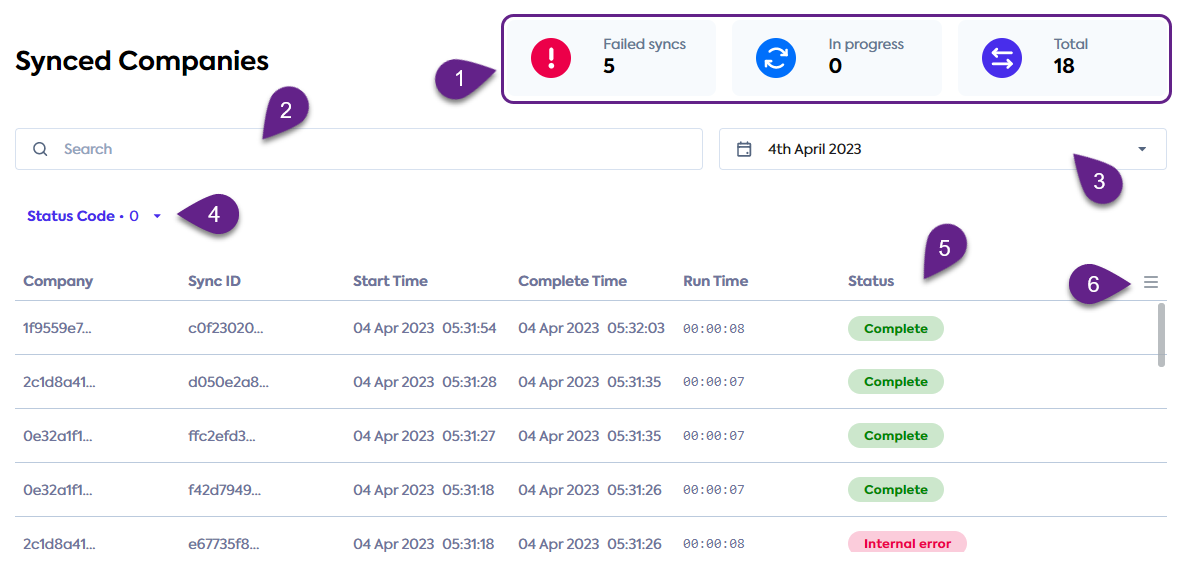
In the Codat Portal, click Products and select the relevant SyncSync The process of fetching the latest data from a connected data source. Syncs can be triggered manually or run automatically on a schedule. product to view its Health page:
- Check the dashboard (1) for a visual summary of syncSync The process of fetching the latest data from a connected data source. Syncs can be triggered manually or run automatically on a schedule. totals.
- Use the search bar (2) to narrow down the records by syncSync The process of fetching the latest data from a connected data source. Syncs can be triggered manually or run automatically on a schedule. ID or companyCompany In Codat, a company represents your customer's business entity. Companies can have multiple connections to different data sources. ID.
- Display the syncSync The process of fetching the latest data from a connected data source. Syncs can be triggered manually or run automatically on a schedule. history for a specific period by indicating a date range (3).
- Review the possible statuses of the syncsSync The process of fetching the latest data from a connected data source. Syncs can be triggered manually or run automatically on a schedule. and filter the records by their status code (4).
- Use the menu (6) to sort and amend the syncSync The process of fetching the latest data from a connected data source. Syncs can be triggered manually or run automatically on a schedule. history (5) table as needed.
View detailed records
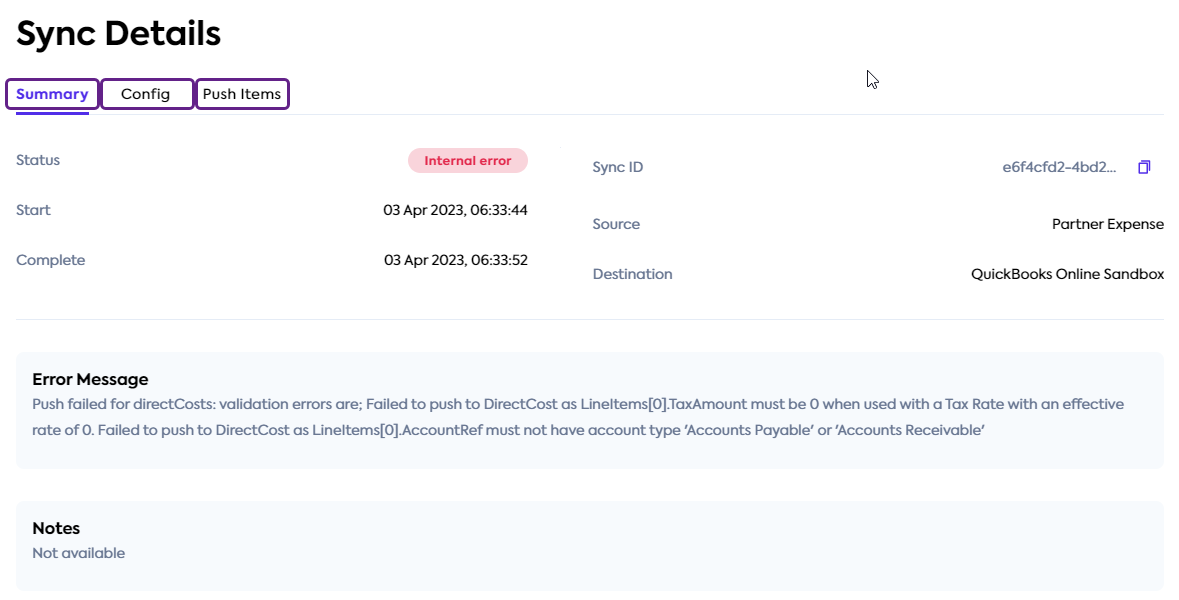
To view more detailed information about a record, click on an item in your syncSync The process of fetching the latest data from a connected data source. Syncs can be triggered manually or run automatically on a schedule. history. The information appears in the SyncSync The process of fetching the latest data from a connected data source. Syncs can be triggered manually or run automatically on a schedule. Details window and provides syncSync The process of fetching the latest data from a connected data source. Syncs can be triggered manually or run automatically on a schedule. start and end times, and syncSync The process of fetching the latest data from a connected data source. Syncs can be triggered manually or run automatically on a schedule. source and target platforms.
It also displays client-friendly notes and error messages in case of syncSync The process of fetching the latest data from a connected data source. Syncs can be triggered manually or run automatically on a schedule. failures. Refer to our troubleshooting guide for recommendations on how to resolve these.
You can also navigate to the Config tab to view and download the customer's syncSync The process of fetching the latest data from a connected data source. Syncs can be triggered manually or run automatically on a schedule. configuration, which helps establish root causes for any errors that occurred.
View push items
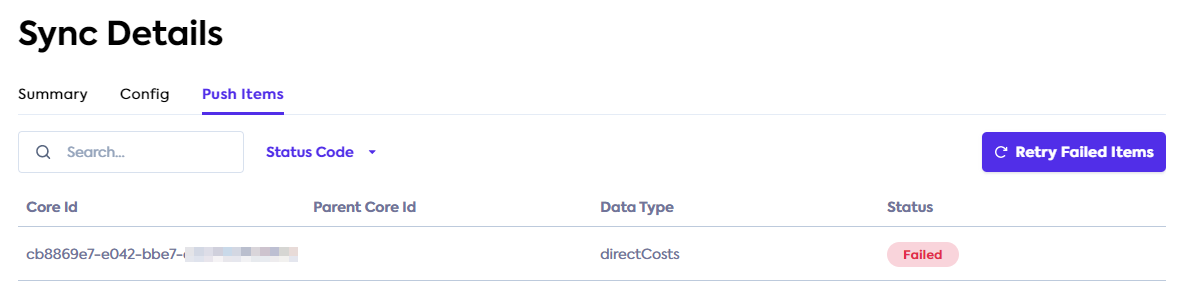
In the same detailed record view, select the Push items tab to access a list of push items. The list contains an item for each accounting data type that was produced in the selected syncSync The process of fetching the latest data from a connected data source. Syncs can be triggered manually or run automatically on a schedule. (for example, an item for invoices, or credit notes).
Here, you can view each item's status, search the items by their core ID or data type, or filter them by status.
Retry push items
On the Push items tab, you can also retry the push items in failed status. Click the Retry failed items button to trigger another attempt to write the data of all failed push items. The button is only enabled if there are failed items to retry.
SyncSync The process of fetching the latest data from a connected data source. Syncs can be triggered manually or run automatically on a schedule. history for customers
Your customers can check their own syncSync The process of fetching the latest data from a connected data source. Syncs can be triggered manually or run automatically on a schedule. history and syncSync The process of fetching the latest data from a connected data source. Syncs can be triggered manually or run automatically on a schedule. status in the SyncSync The process of fetching the latest data from a connected data source. Syncs can be triggered manually or run automatically on a schedule. Flow. For each syncSync The process of fetching the latest data from a connected data source. Syncs can be triggered manually or run automatically on a schedule., the customer can check the syncSync The process of fetching the latest data from a connected data source. Syncs can be triggered manually or run automatically on a schedule. date range and its status.
💡 Tips and traps
- SyncsSync The process of fetching the latest data from a connected data source. Syncs can be triggered manually or run automatically on a schedule. are shown as failed if any of the included items fail to write. Therefore, if a syncSync The process of fetching the latest data from a connected data source. Syncs can be triggered manually or run automatically on a schedule. contains a mix of failed and successfully written records, it will still be marked as failed.
- If a syncSync The process of fetching the latest data from a connected data source. Syncs can be triggered manually or run automatically on a schedule. log record shows a "Please reconcile manually" note for an order, this is likely because an updated order does not have a matching original order in the platform. Therefore, SyncSync The process of fetching the latest data from a connected data source. Syncs can be triggered manually or run automatically on a schedule. is unable to reconcile it, and this needs to be performed manually.
- SyncSync The process of fetching the latest data from a connected data source. Syncs can be triggered manually or run automatically on a schedule. history does not currently display the date range for data read from the commerce software that is used in the syncSync The process of fetching the latest data from a connected data source. Syncs can be triggered manually or run automatically on a schedule..