Download company's spend reports
Learn how to generate and download up-to-date spend reports for your customer
Prerequisites
Before you can review spend data and associated insights, you need to request access to it. We cover this in detail in our Onboard customer guide.
In this guide, we will cover how you can generate and download spend reports generated from your customer's business data using the Codat Portal.
Check report status
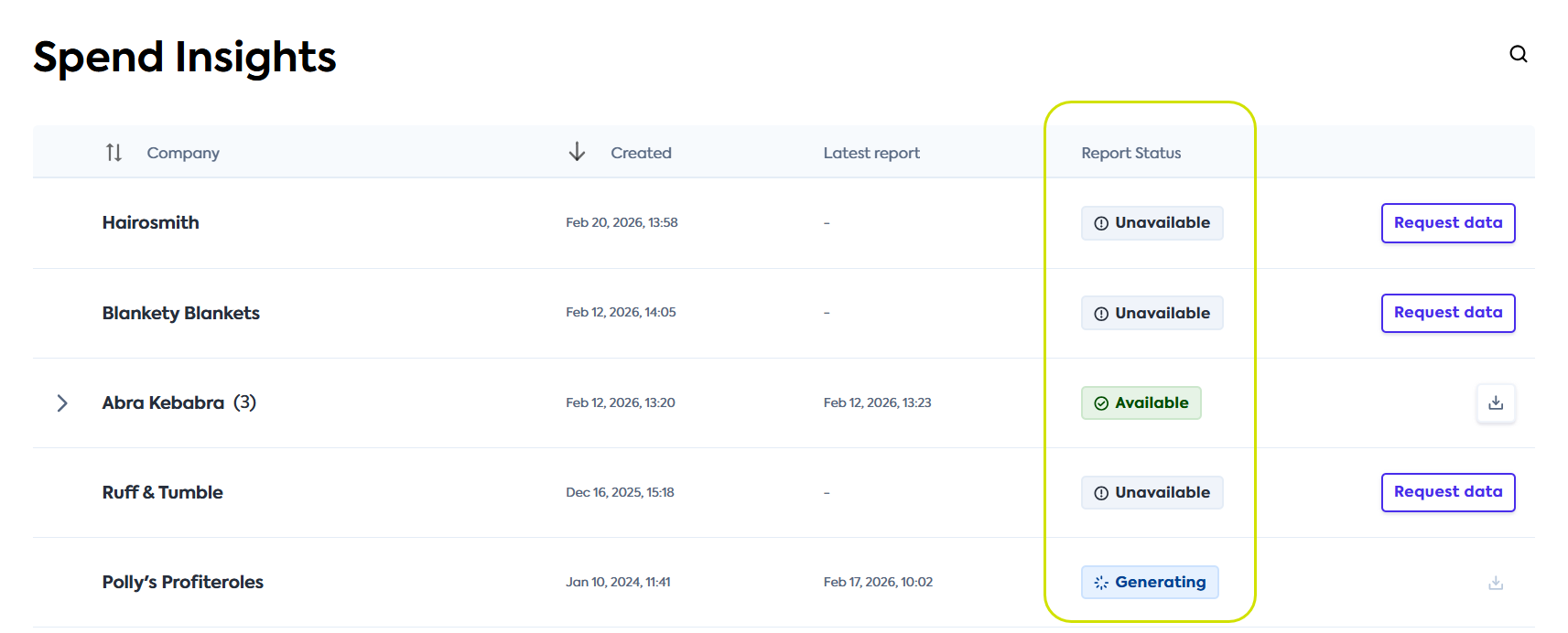
Once you onboard the customer, their initial Spend Insights reports generate immediately. In the Codat Portal, navigate to the Spend Insights tab, locate the customer's companyCompany In Codat, a company represents your customer's business entity. Companies can have multiple connections to different data sources., and check that the reports are ready.
You may see one of the following statuses next to the companyCompany In Codat, a company represents your customer's business entity. Companies can have multiple connections to different data sources. name:
| Report status | Action |
|---|---|
| Available | Codat successfully generated the spend report for this customer, and it's ready to download. |
| Generating | Codat is currently generating the spend report for this customer. Check back later. |
| Unavailable | Codat hasn't yet received data from this customer. Onboard the customer first. |
| Failed | Codat couldn't generate the report. Contact support to resolve the error. |
Update report
If your customer shared their data with you via Data streaming, you can refresh the data in the Spend Insights report as often as you need. This ensures you are always working with the most up-to-date financial information of your customers.
On-demand report update isn't possible if your customer used Intelligent Upload to share their financial data.
To generate an updated report, follow these steps:
-
Navigate to the Spend Insights tab in the Codat Portal.
-
Search or scroll to locate the companyCompany In Codat, a company represents your customer's business entity. Companies can have multiple connections to different data sources. you require reports for.
-
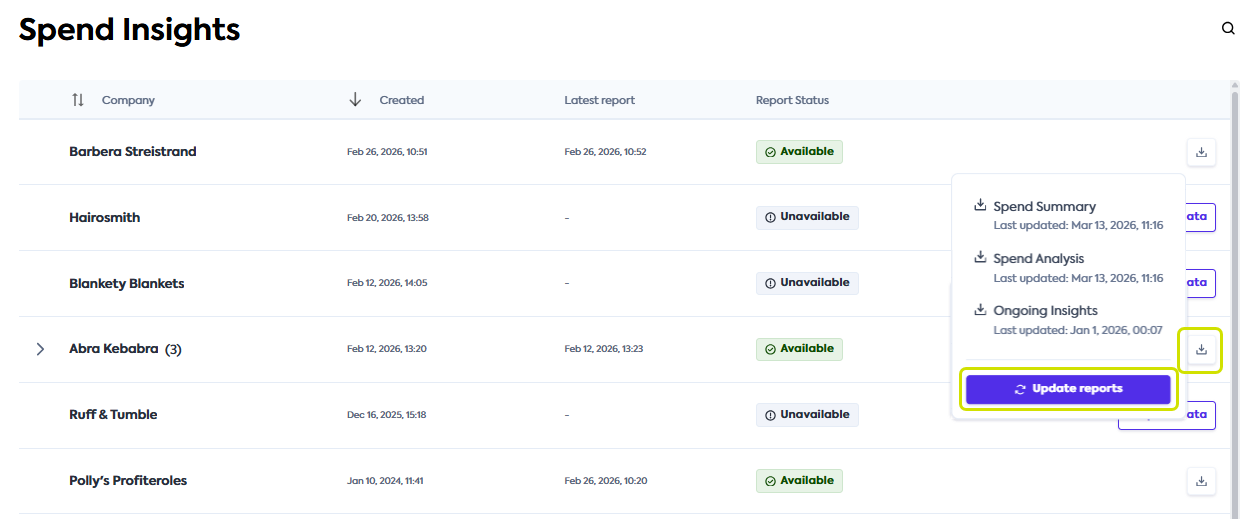
Click the Download icon on the companyCompany In Codat, a company represents your customer's business entity. Companies can have multiple connections to different data sources. line to view the dropdown menu.
-
Click Update reports in the dropdown menu.
-
Track the progress by checking the Report Status column.
Once updated, the status will change from Generating to Available, and you can go ahead and download the resulting report.
Download report
When you are ready to download a companyCompany In Codat, a company represents your customer's business entity. Companies can have multiple connections to different data sources.'s Spend Insights reports, you can do so from the Spend Insights tab.
-
Search or scroll to locate the companyCompany In Codat, a company represents your customer's business entity. Companies can have multiple connections to different data sources. you require reports for.
-
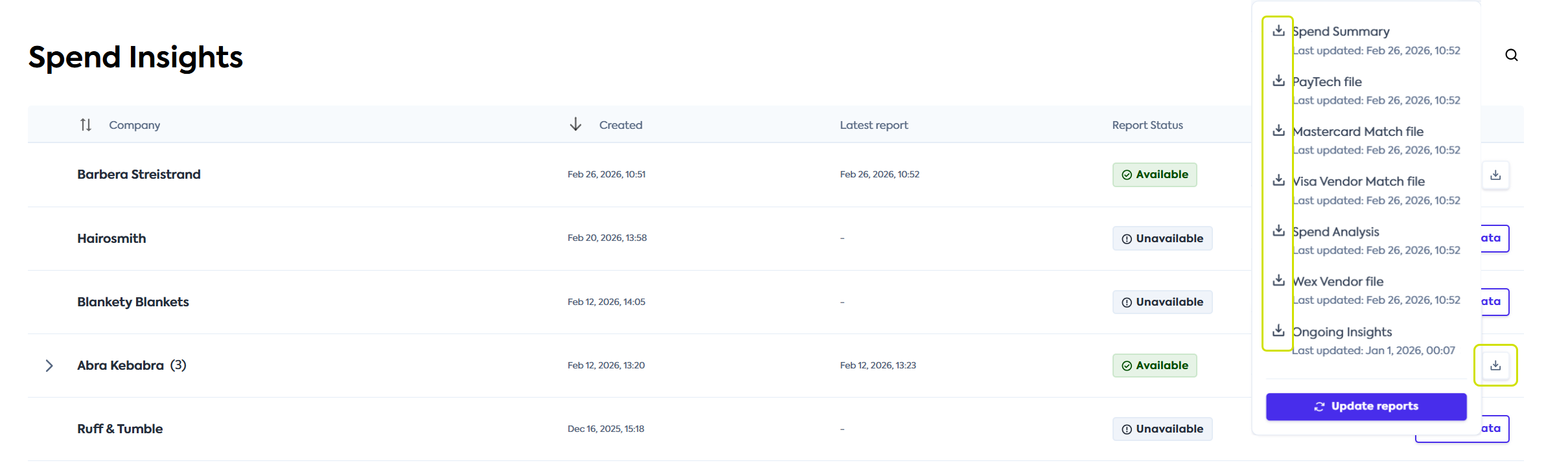
Click the Download icon on the companyCompany In Codat, a company represents your customer's business entity. Companies can have multiple connections to different data sources. line to view the dropdown menu.
-
Click the report line item that you want to download.
This initiates the download and saves the Excel report to your default download folder.
Report types
Codat offers three report types with a different level of detail that serve a different stage of your engagement with a customer. For a full breakdown of each report's columns and how to interpret the data, review the reports' reference pages.
| Report | Format | Description | Target use |
|---|---|---|---|
| Spend Summary | PowerPoint | A one-page customer-ready snapshot of top supplier opportunities and key metrics, such as cashback potential and time saved. | Sales enablement, quick value demonstration, client-facing conversations |
| Spend Analysis | Excel | A detailed breakdown of your customer's accounts payable data, payment methods, supplier spend, and settlement terms. | Deep spend analysis, identification of cardable suppliers, input for supplier onboarding campaigns |
| Ongoing Insights | Excel | An automated quarterly report that compares the latest spend data to previous periods and highlights new suppliers, trends, and payment method changes. | Continuous monitoring of opportunities, supplier onboarding prioritization |
| Mastercard Match | Excel | Supplier data formatted for Mastercard's supplier matching platform. | Supplier enablement using third party tools. |
| PayTech | Excel | Supplier data formatted for PayTech's supplier matching processes. | Supplier enablement using third party tools. |
| Visa Vendor Match | Excel | Supplier data formatted for Visa's supplier matching processes. | Supplier enablement using third party tools. |
| Wex | Excel | Supplier data formatted for Wex's supplier matching processes. | Supplier enablement using third party tools. |
If you don't see all reports in the download list, this may be because:
- The report hasn't been generated yet. Select Update reports from the download dropdown to trigger a refresh.
- The report type is disabled for your organization. Reach out to your account manager to enable it.
- The Ongoing Insights companyCompany In Codat, a company represents your customer's business entity. Companies can have multiple connections to different data sources. report is generated quarterly. If a quarter hasn't passed since the initial data sharing, the report won't appear in the list.