A simpler Intelligent Upload journey in Link, with new ways to get help

Your customers can now share their accounting reports through Intelligent Upload on a single, guided screen. They see what each file needs to contain, can swap out a wrong file before submitting, and can reach you for help along the way.
What's new?
Intelligent Upload is how customers whose accounting software has no direct integration share their data for Spend Insights. The previous journey took them through a separate screen for each report, with export instructions that were often out of date, and gave them no way to replace a file once uploaded.
The new journey is one screen:
- Each report (Vendors, Bills, Payments, and optionally Expenses) lists the fields its file should contain and says it needs to cover the last 12 months.
- Customers upload a CSV or XLSX file for each report, in any order, and can replace a file at any time before submitting.
- If the connectionConnection A link between a Codat company and a data source (like an accounting platform). Each connection represents authorized access to pull or push data from that platform. drops midway, nothing is lost: one tap resends the files we haven't received. If we can't use a file, we say which one, so they re-upload only that.
- A Files received screen confirms what they shared and what happens next.
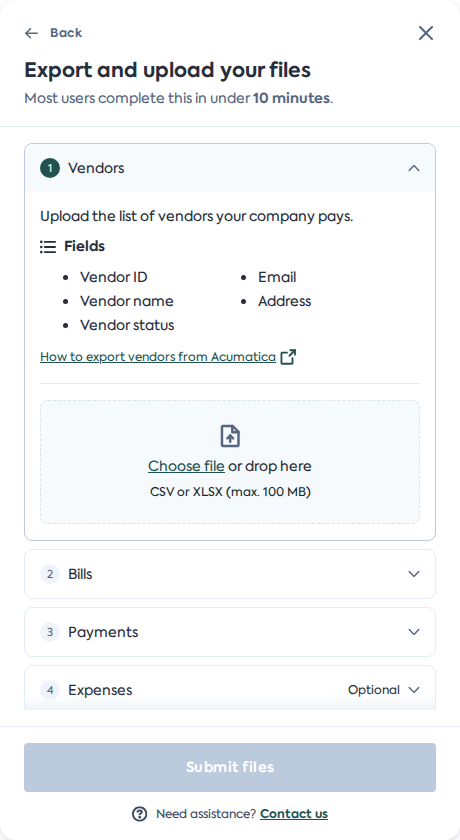
Required fields and a drop zone for each report
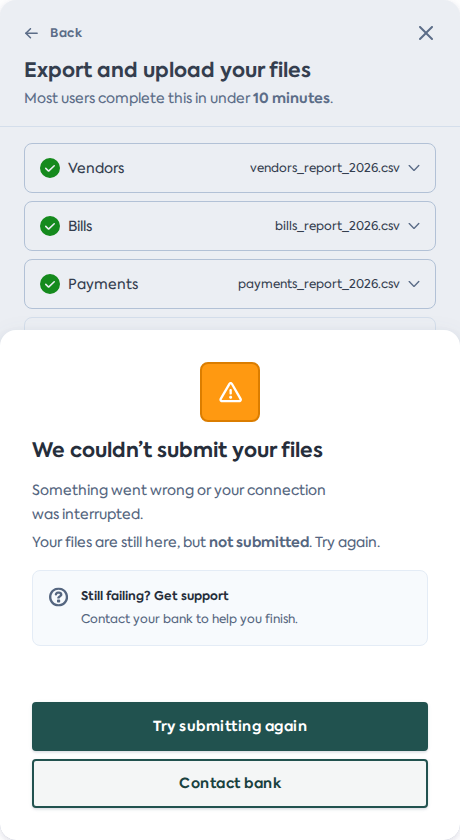
Files are kept if submission fails
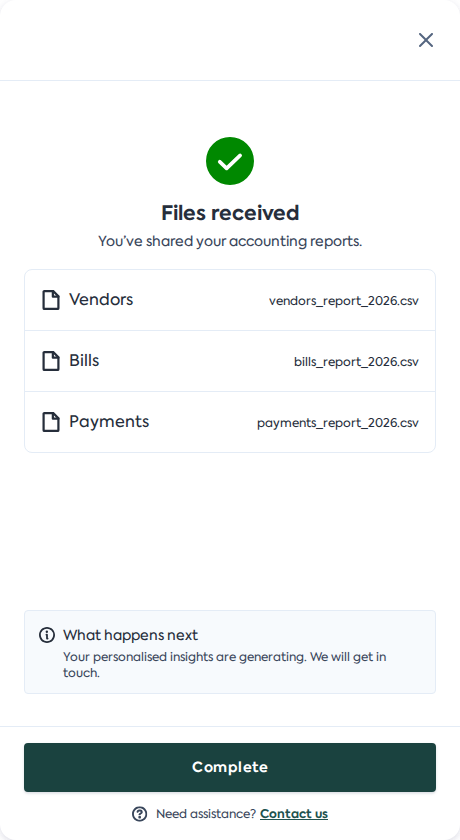
Confirmation of the files received
Two ways for customers to reach you
Set either of these in your LinkLink The authorization flow that allows end users to connect their accounting, banking, or commerce platforms to your application via Codat. settings and it appears in the journey. Leave it empty and nothing changes.
- File upload support email: if submitting fails, a Contact bank button opens an email to this address.
- File upload scheduling linkLink The authorization flow that allows end users to connect their accounting, banking, or commerce platforms to your application via Codat.: a Need assistance? Contact us linkLink The authorization flow that allows end users to connect their accounting, banking, or commerce platforms to your application via Codat. on every screen opens your booking page, so customers can book a call for help exporting their files. Use Google Calendar, Calendly, or any other scheduling linkLink The authorization flow that allows end users to connect their accounting, banking, or commerce platforms to your application via Codat..
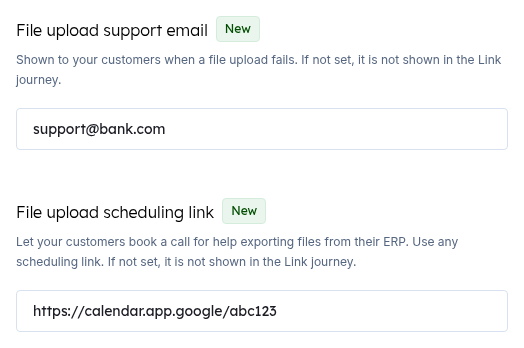
The journey is available in English and Canadian French.
Who is this relevant for?
Spend Insights clients whose customers share their data through Intelligent Upload, in Hosted Link or the Link SDK.
How to get started?
No action is required. Every customer who starts an Intelligent Upload gets the new journey.
To add your contact details in the Codat Portal:
- Go to Settings > Auth flow > Link > Onboarding.
- Fill in File upload support email and File upload scheduling linkLink The authorization flow that allows end users to connect their accounting, banking, or commerce platforms to your application via Codat.. Changes are saved automatically.
If you use the LinkLink The authorization flow that allows end users to connect their accounting, banking, or commerce platforms to your application via Codat. SDK, you can override both for a session:
options: {
  supportContactEmail: "[email protected]",
  codatSupportBookingUrl: "https://calendar.app.google/abc123",
}
For more detail, see Link settings in Portal and the Link SDK options reference.